⚖  Advocate Reference Guide

The iLawPage User Manual

iLawPage is an AI legal research and practice workspace for advocates: search judgments, run your case diary, draft documents with AI grounding, and read Bare Acts — all in one portal. This guide walks through every module using screenshots of the live application.
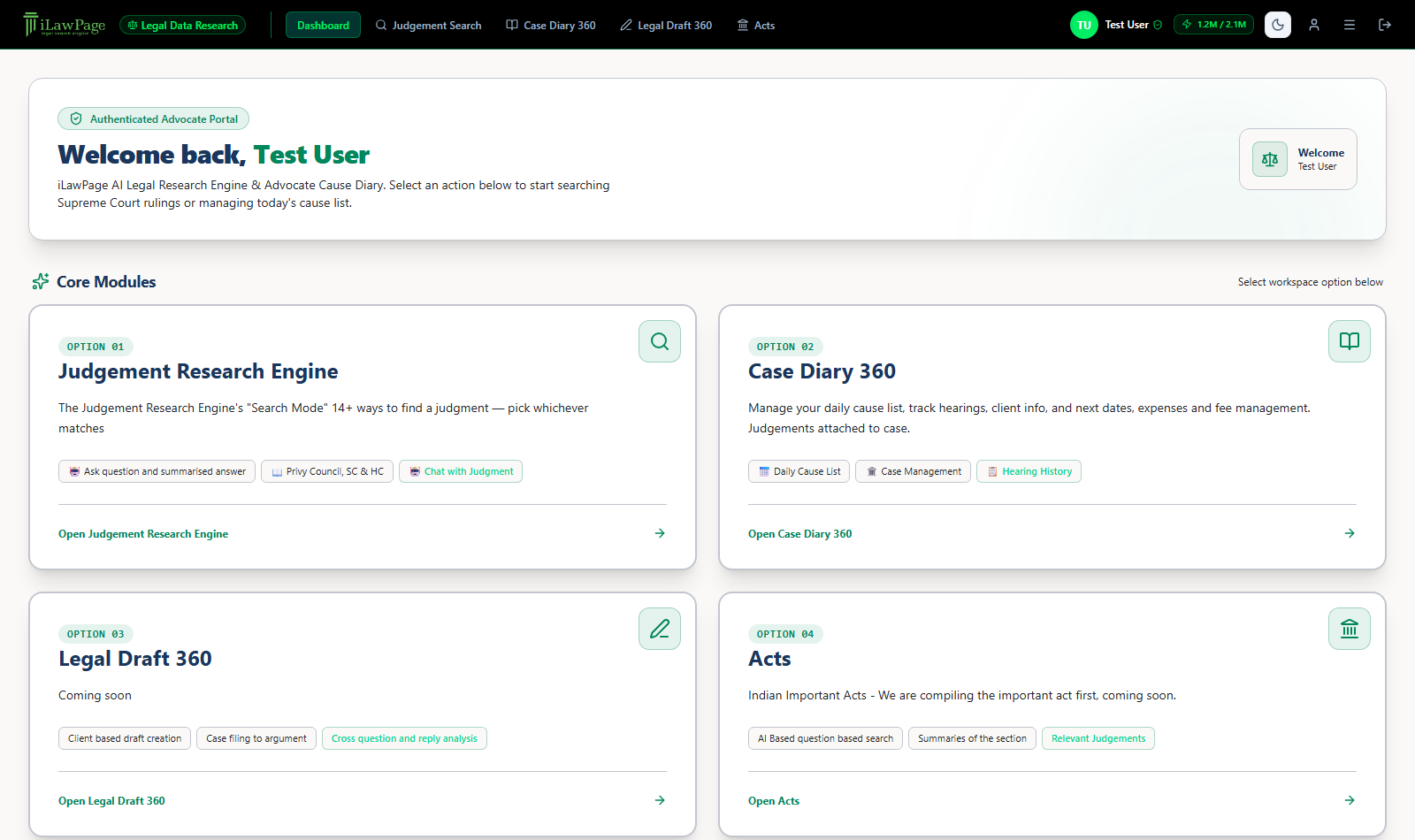
ilaw.page/dashboard
iLawPage dashboard with four core module cards
The Dashboard is where every session starts. The top bar (present on every screen) carries the four modules, your account menu, theme toggle, and an AI-token usage meter for the month. Below it, four cards launch into Judgement Search, Case Diary 360, Legal Draft 360, and Acts.
01

Judgement Search Engine

Search Supreme Court and High Court judgments 14 different ways, read them in a distraction-free reader, get an AI case summary in under 30 seconds, and ask follow-up questions of the judgment itself.

Search modes

The Search Mode bar at the top offers 14 ways to find a judgment — pick whichever matches what you already know.

AI Q&A ResearchAI

Ask a legal question in plain English. Answers with citations instead of a list to read yourself.

"Can anticipatory bail be granted in an NDPS case?"
Semantic SearchAI

Meaning-based search — finds judgments on your concept even without your exact words.

"prolonged incarceration as a ground for bail"
Free TextAdvanced

Full-text search with AND / OR / NOT and exact-phrase matching over the judgment body.

"prolonged incarceration" AND bail NOT anticipatory
Topic SearchMode

Search by legal doctrine or subject heading, from AI-extracted topics and headnotes.

"Specific performance", "Anticipatory bail"
Act / RuleMode

Search by a specific Act, Section, or Rule number.

"Section 138 NI Act", "Order VI Rule 17 CPC"
Nominal (Party)Mode

The classic case-name search — by petitioner, respondent, or case title.

"Sanjay Chandra", "State of U.P."
AdvocateMode

Search by the name of counsel who appeared in a case.

"Rahul Chaudhary"
Coram / JudgeMode

Search by the judge or bench that decided a case.

"Kshitij Shailendra"
Date RangeFilter

Filter judgments to a specific From / To decision-date window.

01-01-2024 to 31-12-2024
CitationMode

Look a judgment up directly by its official citation — SCC, AIR, SCALE, or iLawPage.

"(2012) 1 SCC 40"
Latest JudgmentsLive

The 500 most recently published judgments, newest first. No query needed.

Just open the tab
LandmarkFilter

Isolates landmark precedents and Constitution Bench rulings (3, 5+ judges).

Type a keyword to filter within these
BookmarksSaved

Every judgment you've bookmarked, in one list. Opens instantly.

—
HistoryLog

Your last 20 judgments opened and last 20 searches run, most recent first.
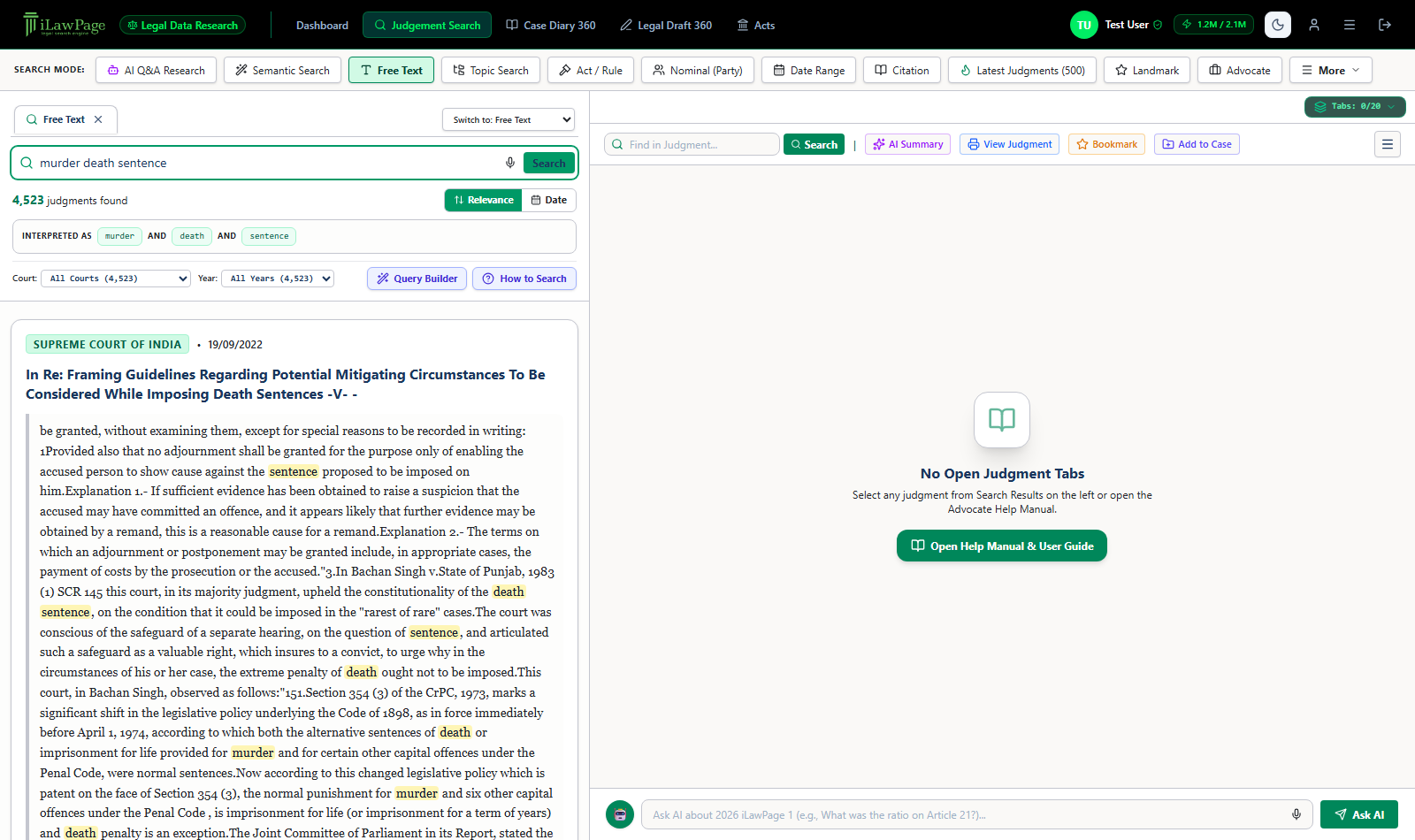
—
Free Text · "murder death sentence"
Free text search results list showing 4,523 judgments found with matched terms highlighted
A Free Text search interprets your query as AND-joined terms, highlights every match in the extract, and lets you filter results by Court and Year or re-sort by Relevance / Date. Click any card to open the full judgment.
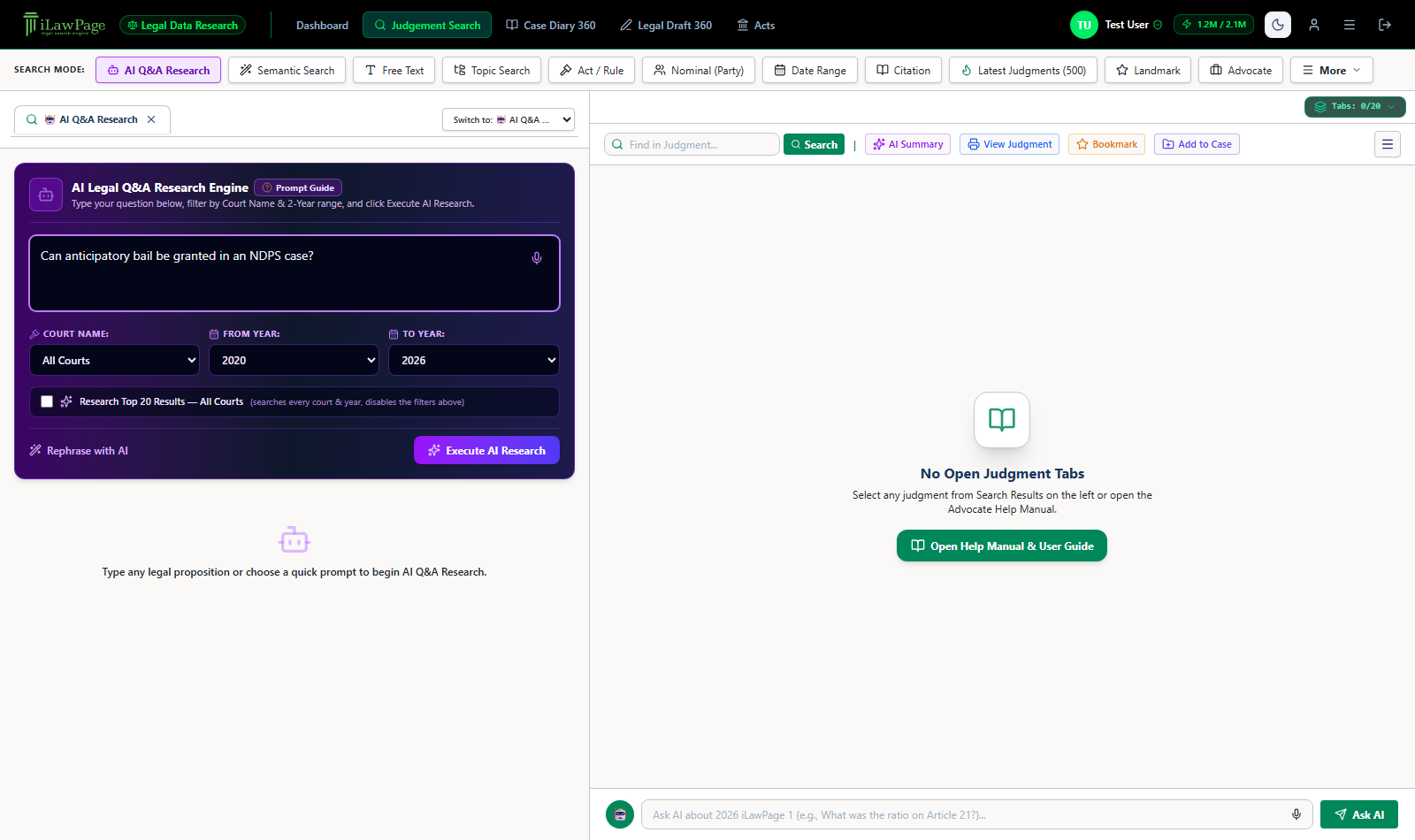
AI Q&A Research — filters & scope Before you run a question, you can narrow it by Court Name and a From Year/To Year window, or tick Research Top 20 Results — All Courts to search every court and year at once. Use Rephrase with AI if you're not sure how to phrase the legal question.
AI Q&A Research
AI Q&A Research input panel with court/year filters and Execute AI Research button
The AI Q&A Research panel — type any legal proposition and click Execute AI Research to get a synthesized, citation-backed answer instead of a results list.

Reading a judgment — toolbar & menu
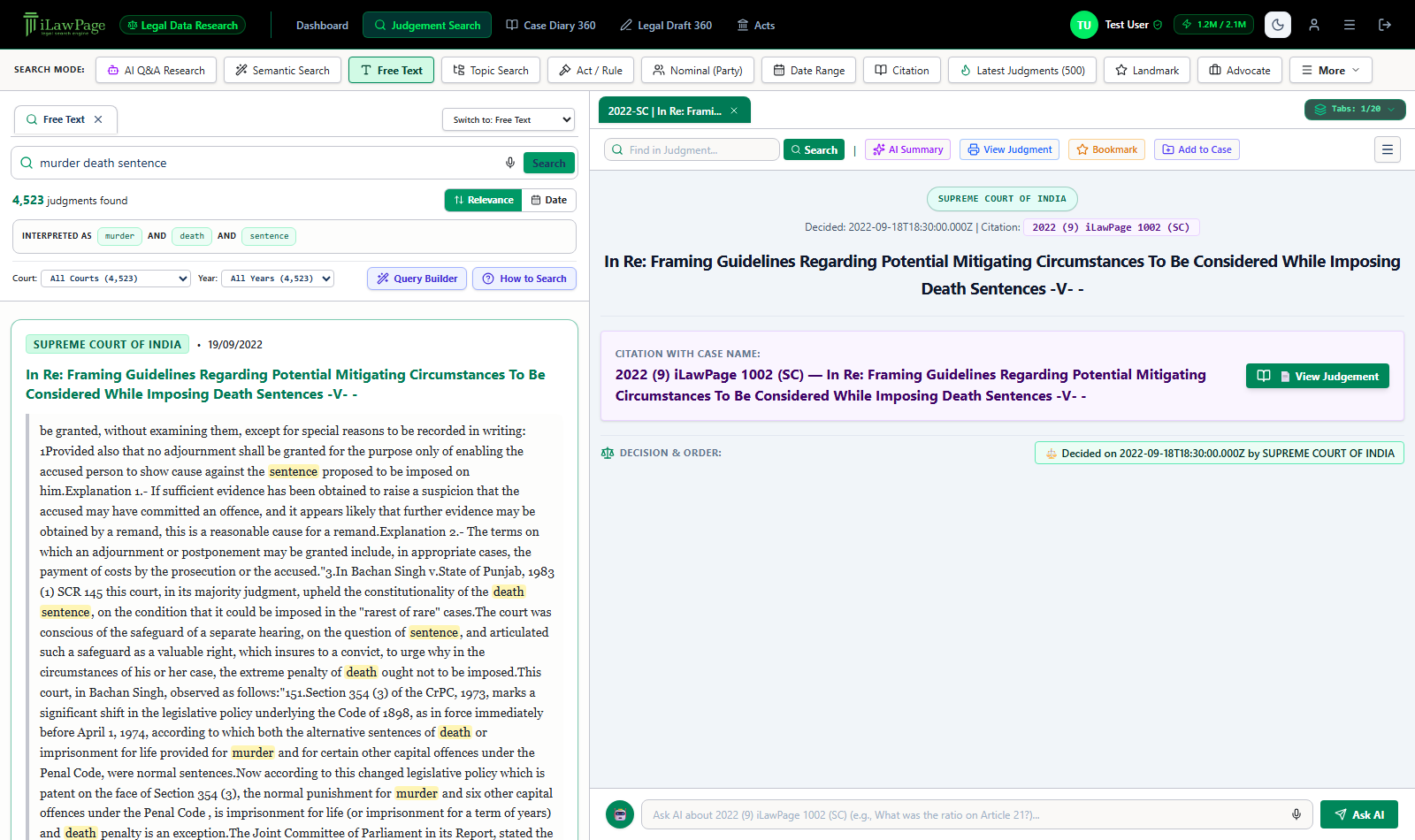
Reader · toolbar
Judgment reader open with the toolbar: Find in Judgment, AI Summary, View Judgment, Bookmark, Add to Case
Once a judgment is open, five tools sit in the toolbar, with a ≡ menu on the right for print/copy/theme settings.
  1. Find in Judgment — searches everything shown for this judgment (title, court, topic, headnote, full text) and highlights every match. This is local to what's on screen, not a database query.
  2. AI Summary — generates a plain-language case note: facts, issues, the court's reasoning, and the final order, usually ready in under 30 seconds.
  3. View Judgment — opens the full judgment in a dedicated print/PDF-style window, with its own keyword search, a link to the original court source, and a download option.
  4. Bookmark — saves the judgment to your Bookmarks list, with an optional note. Click again to update it; the badge shows how many advocates on your account have bookmarked it.
  5. Add to Case — attaches the open judgment to a Case Diary 360 case, so it shows up under that case's Judgments tab.

The ≡ menu additionally offers Print / Export PDF, Copy Full Judgment Text, a Reader Theme switch (White / Sepia / Dark), and A− / A+ font size controls. You can also keep up to 20 judgment tabs open at once, close any of them, and they all survive a page refresh.
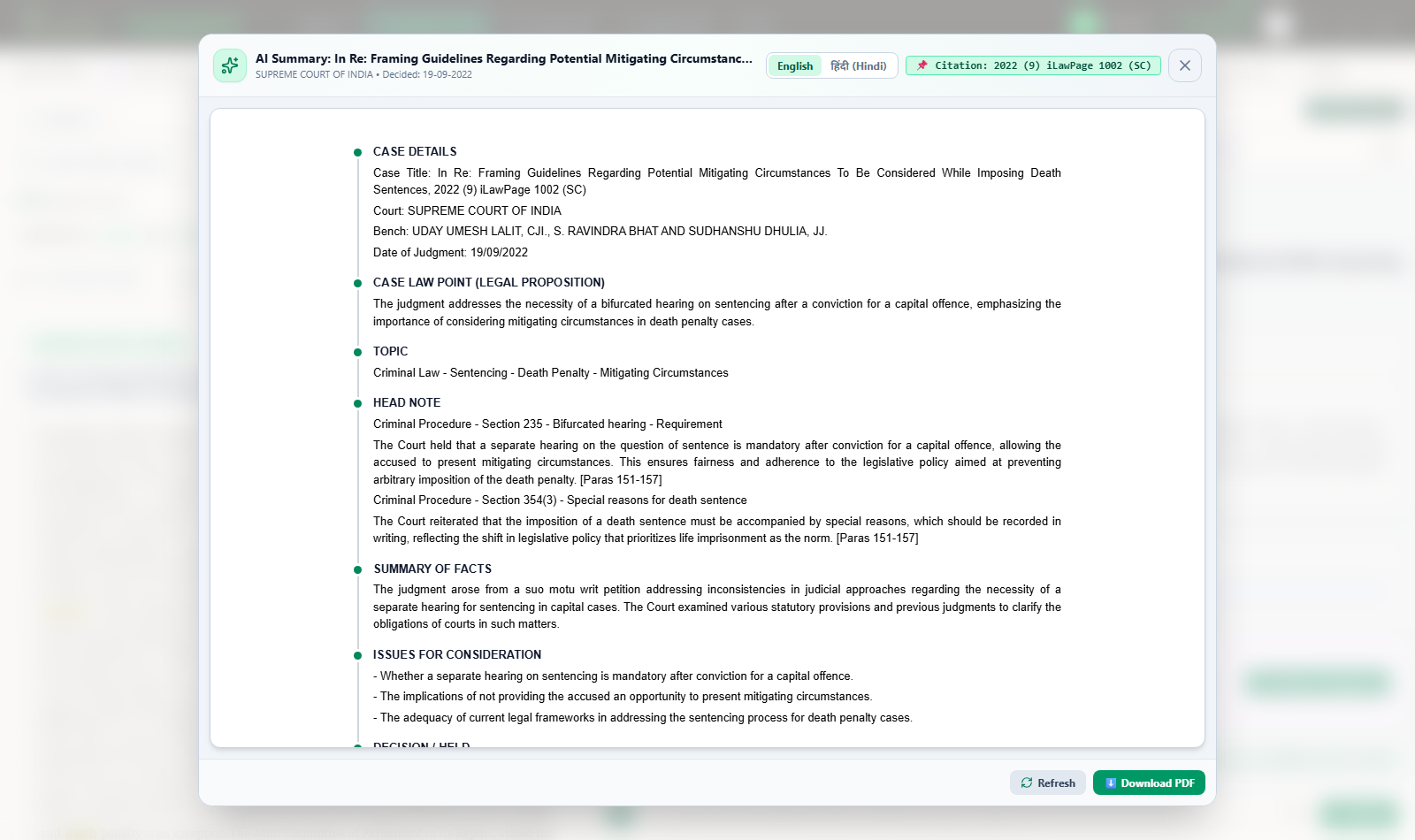
AI Summary · In Re: Framing Guidelines... (2022) 9 iLawPage 1002 (SC)
AI Summary panel for a real Supreme Court judgment showing case details, legal proposition, headnote, and issues
A real AI Summary, generated from a Supreme Court judgment — case details, the legal proposition, head notes with paragraph references, facts, and issues, in English or Hindi, with a one-click Download PDF.

Chat with the judgment

The Ask AI bar fixed at the bottom of the reader is different from AI Q&A Research above — it only answers from the one judgment you have open, using that judgment's own text rather than the whole corpus.

  • Isolated per-judgment memory — each open judgment keeps its own conversation.
  • Downloadable research notes — export the chat log with citation, title, coram, and timestamp.
  • One-touch prompts — quick chips for the ratio, statutory sections, or an order summary.
02

Case Diary 360

Your digital chamber — clients, cases, hearings, expenses, fee receipts, and every judgment, draft or statute you've tied to a matter, in one place. It has four sections: 360 Dashboard, Cause List, Case Master, and Clients.
360 Dashboard
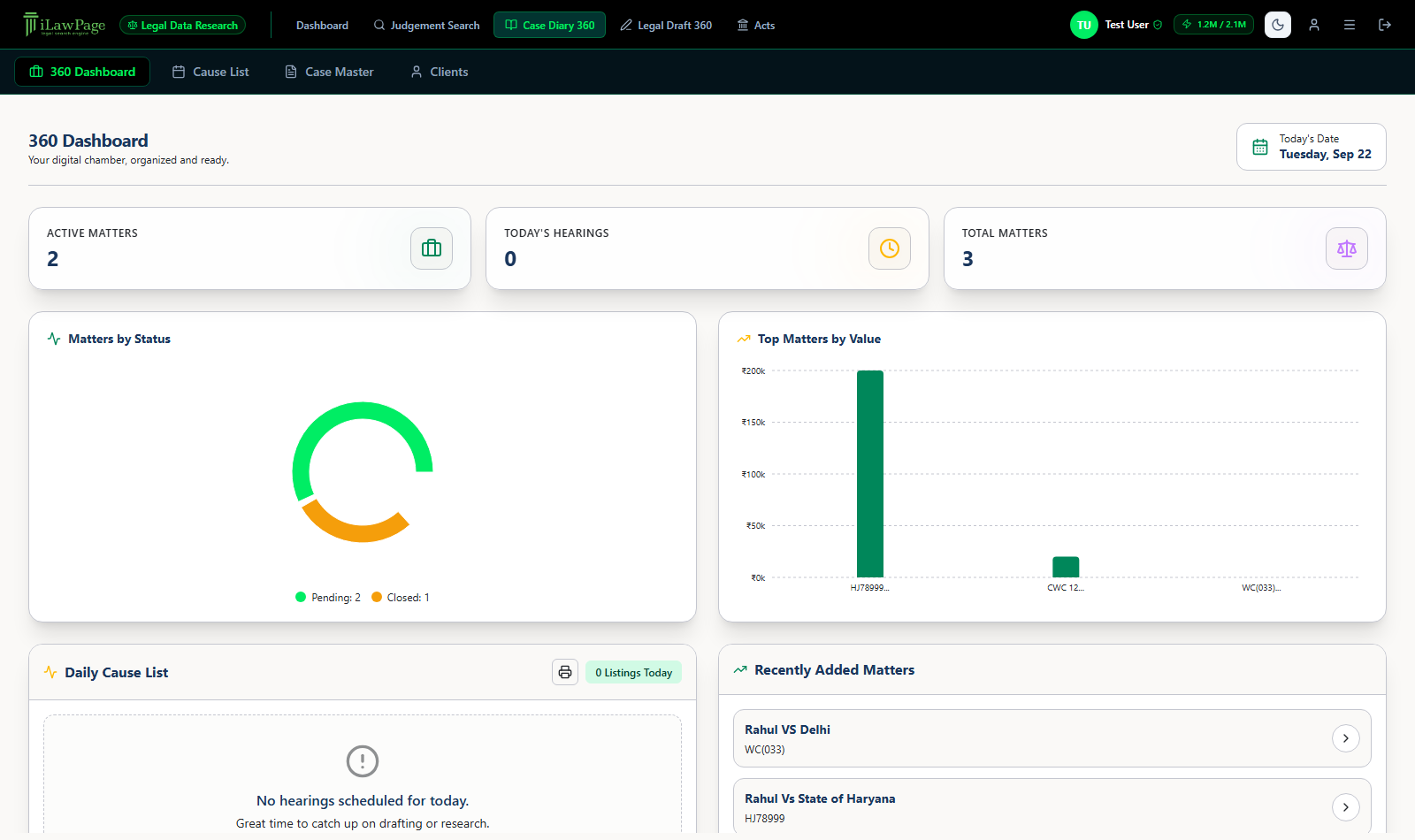
Case Diary 360 dashboard with active matters, today's hearings, matters by status donut chart, top matters by value, and daily cause list
The 360 Dashboard is your morning view — active matter counts, today's hearings, a status breakdown, top matters by value, and the day's cause list, with recently added matters alongside.

Running a case, end to end

This is the order the workspace is built around, from a new client to a settled financial position:

  1. Add the client — Clients tab → Create New Client. Enter their name, mobile, and address once; you'll pick them from this list for every case they're a party to.
  2. Create the case — Case Master tab → the + button → Create New Case. Select the client, then fill in the case title, case number, and court.
  3. Track hearings — open the case → Case Diary tab → Add Hearing. Log the hearing date, next date, and your notes — this feeds the Daily Cause List automatically.
  4. Log expenses — Expenses tab → add each expense as incurred, then Generate Expense Slip to bundle them, and Post to Financial Sheet once approved.
  5. Record fee receipts — Financials tab → + Log Receipt → the Fee ledger. Every payment against your agreed fee is logged here, date-wise.
  6. Review the financial sheet — still on Financials: the Receipts Ledger shows every Fee and Expense receipt together, and the case header keeps total agreed fees, total collected, and pending balance current automatically.
Case Master
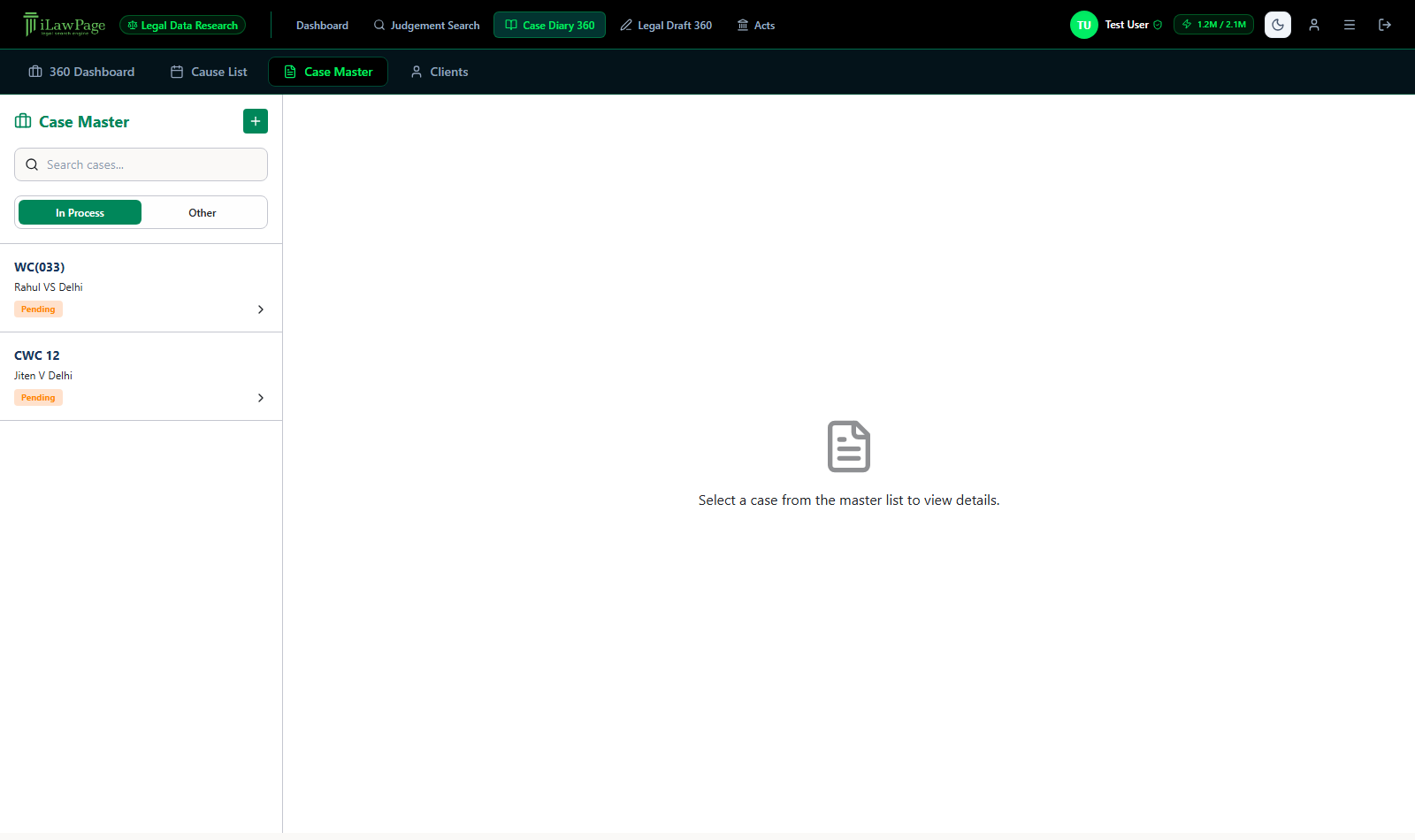
Case Master list showing two cases filtered by In Process status
The Case Master list, filterable by In Process / Other, with search by title, number, or client.
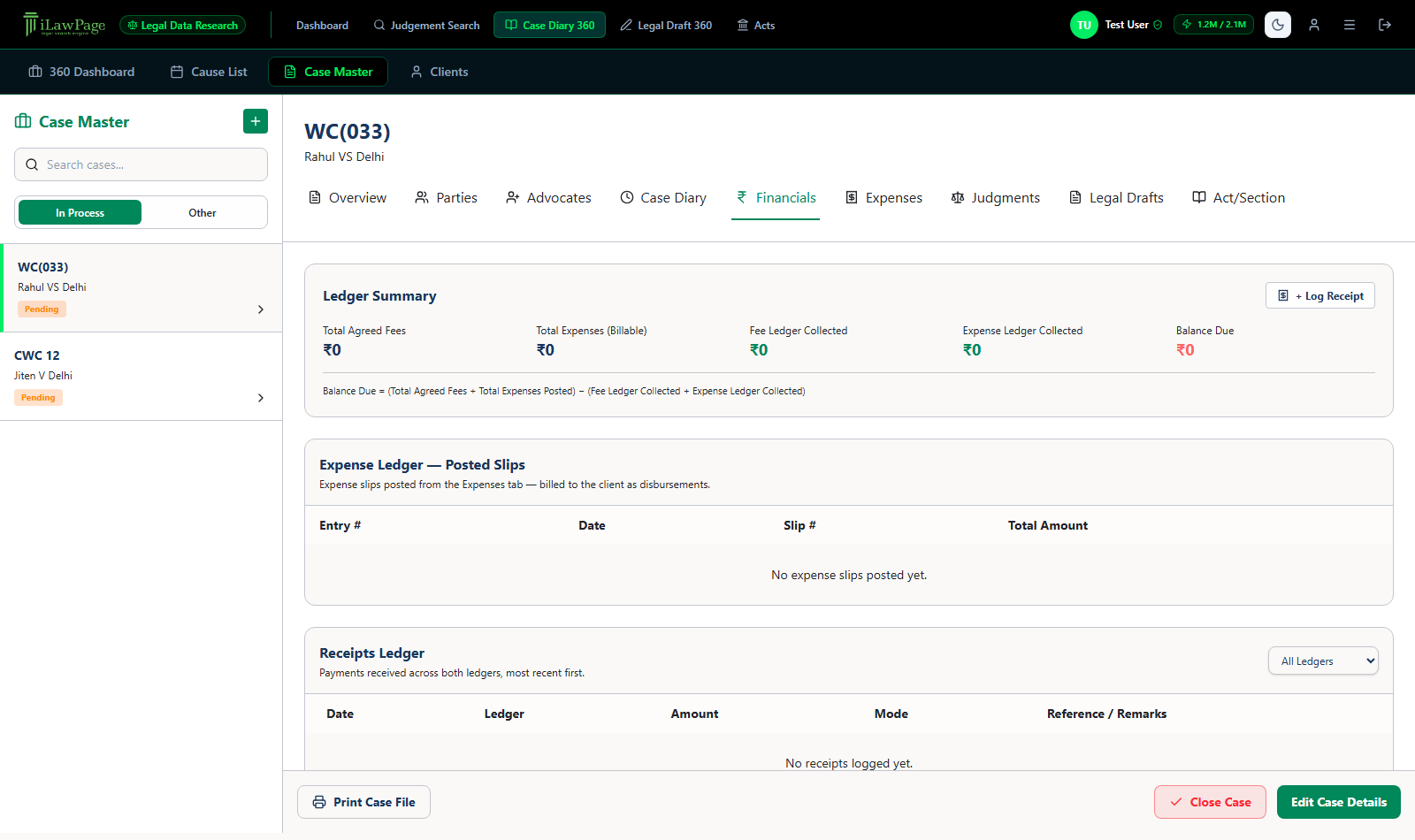
Financials
Financials tab showing ledger summary, expense ledger, and receipts ledger
The Financials ledger: agreed fees, expenses, amounts collected on each ledger, and the balance due — computed live.

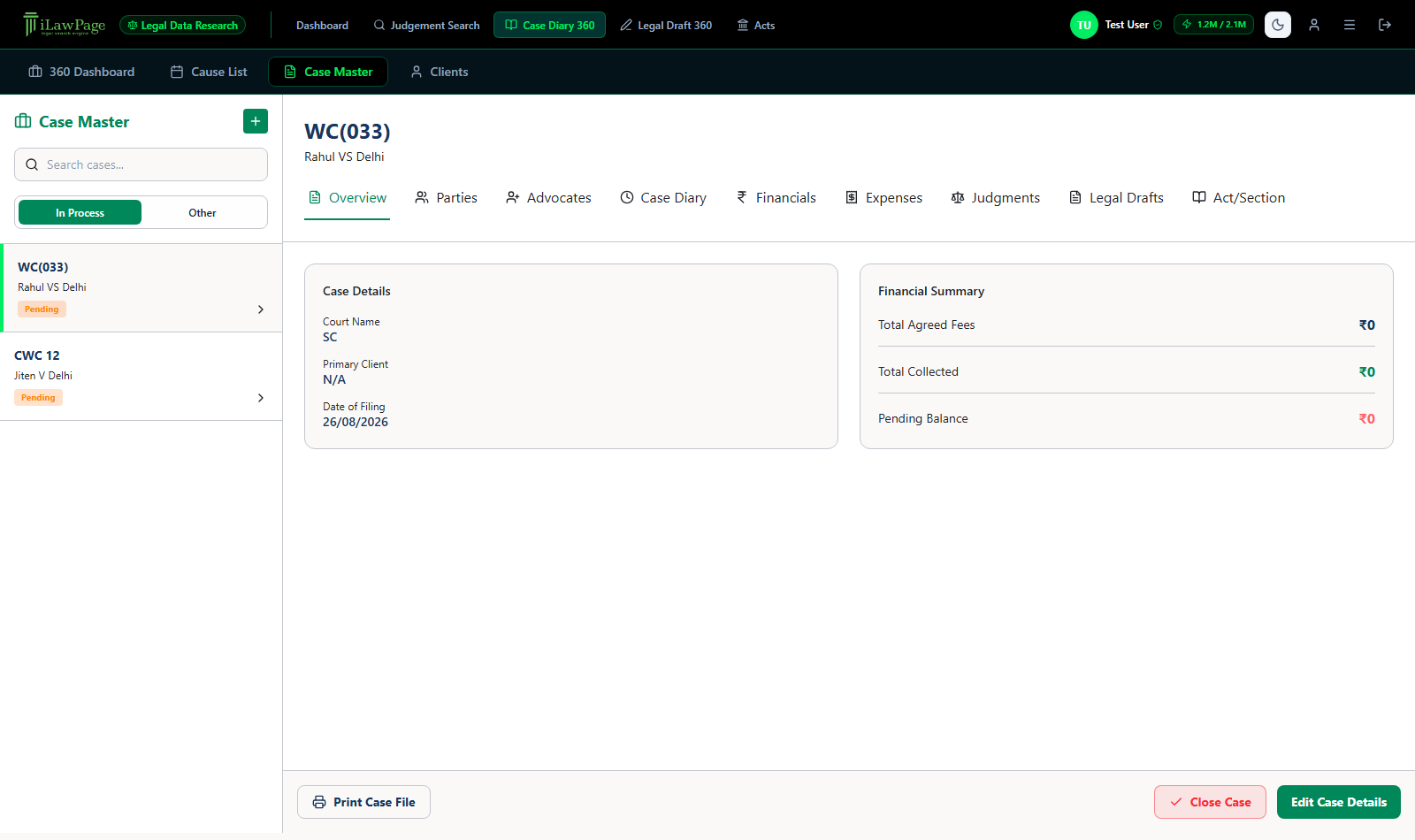
The case detail tabs

WC(033) · Rahul VS Delhi
Case detail view with nine tabs: Overview, Parties, Advocates, Case Diary, Financials, Expenses, Judgments, Legal Drafts, Act/Section
Opening any case shows nine tabs across the top: Overview, Parties, Advocates, Case Diary, Financials, Expenses, Judgments, Legal Drafts, and Act/Section. Print Case File and Close Case sit in the footer.
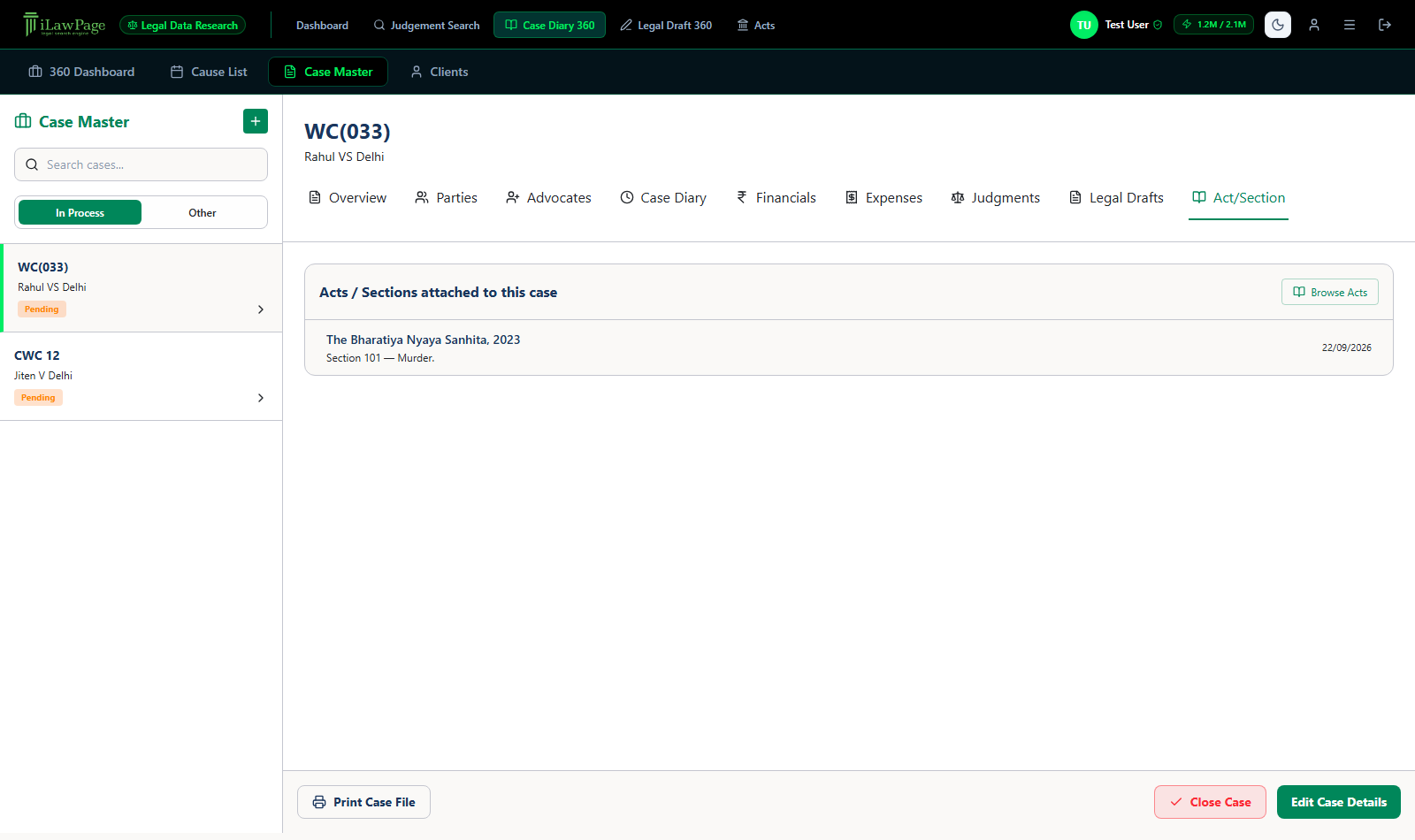
Act / Section tab Every Act or Section you've attached to a case from the Acts Search Engine (see Attach to Case below) shows up here, with the date it was attached. Click any row to jump straight back into that exact Act and Section in Acts Search — you don't land on the Act's landing page and have to find the section again.
Act/Section tab
Act/Section tab showing The Bharatiya Nyaya Sanhita, 2023, Section 101 — Murder attached to the case
Section 101 of the Bharatiya Nyaya Sanhita, attached to this case from the Acts Search Engine, with a Browse Acts shortcut for finding more.
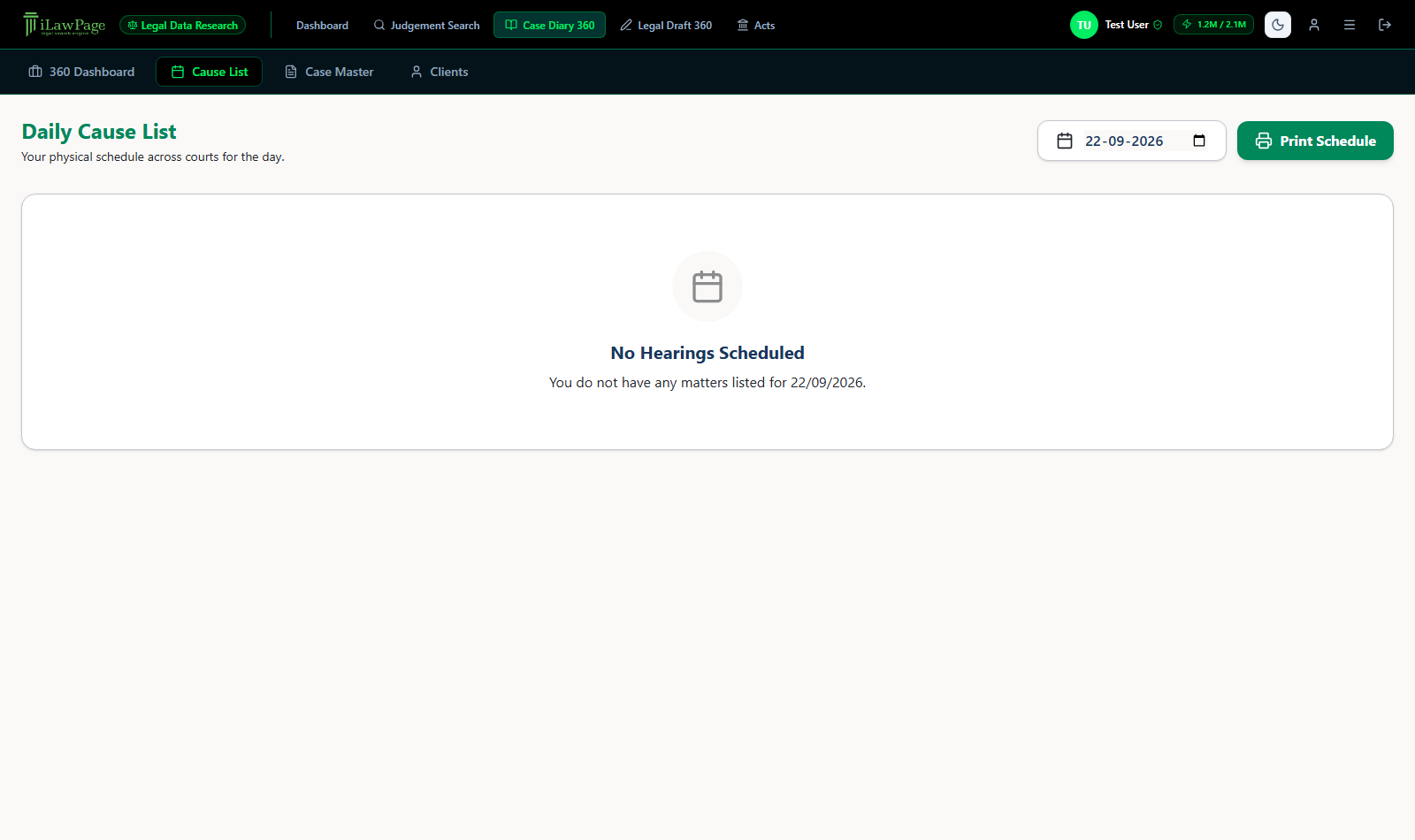
Cause List
Daily Cause List for a selected date with a Print Schedule button
The Daily Cause List — pick any date to see your physical schedule across courts, and Print Schedule to hand a copy to your clerk.
03

Legal Draft 360

An AI drafting workspace that grounds what it writes in real judgments and Bare Act sections you choose — not generic boilerplate — and checks its own citations before you sign off.
Legal Draft 360 · Dashboard
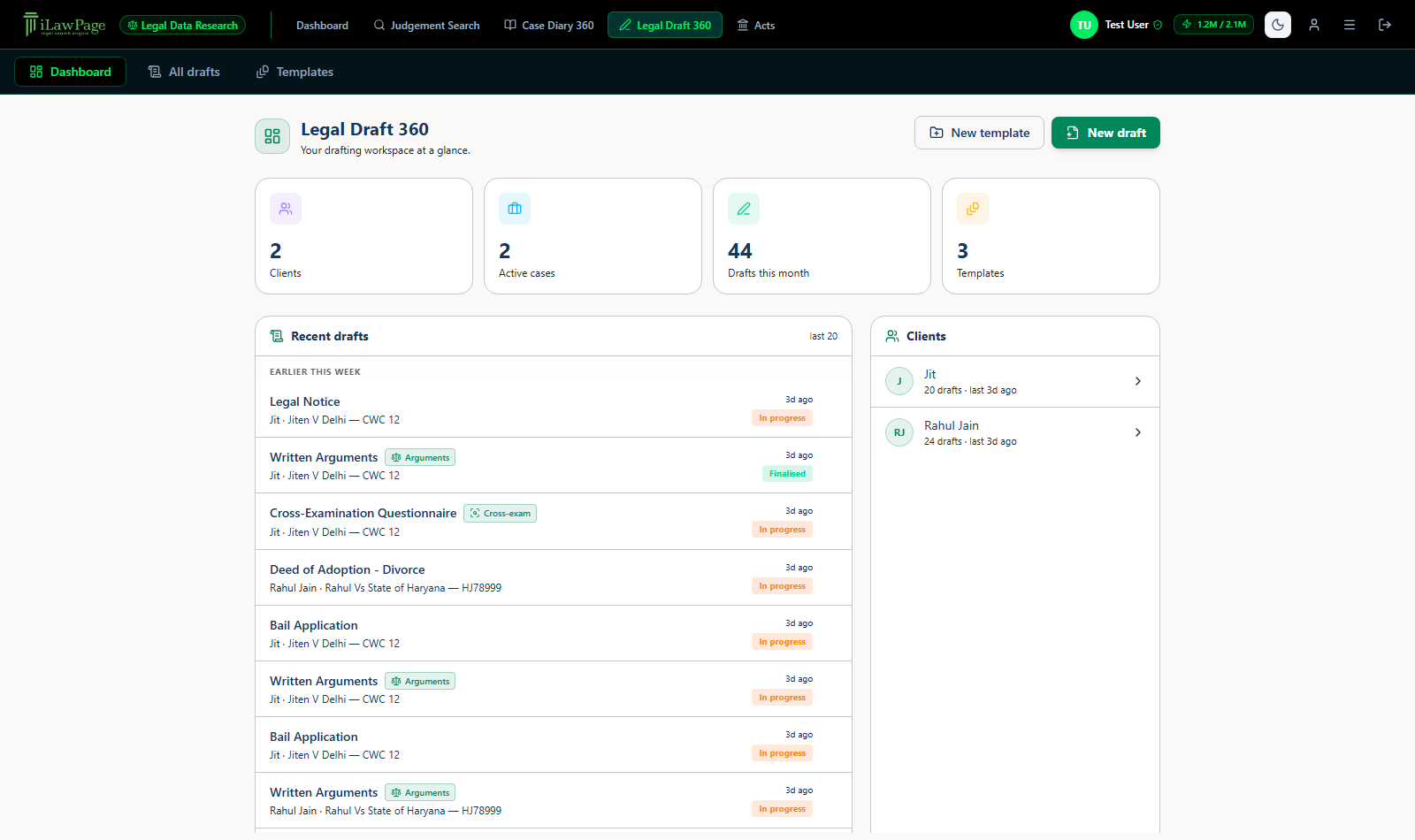
Legal Draft 360 dashboard with client/case/drafts stats, recent drafts list, and clients panel
The dashboard tracks clients, active cases, drafts produced this month, and your saved templates, with a running list of Recent drafts and quick access to New draft or New template.

The 6-step drafting wizard

Every new draft walks through the same six steps, shown down the left side as you go:

  1. Document — what are you drafting. Start from a saved personal template, a firm-wide form, or your own typed text (the draft follows that structure) — or pick a ready-made Document type from the library, which carries its own drafting brief.
  2. Matter — client, case & grounding: which client and case this draft belongs to, and which judgments or Act sections to ground it in.
  3. Context — describe the matter in your own words. Type it, or click the mic in any box on this step and dictate it: your words are added where the cursor is each time you pause, you can keep typing while dictating, and you can narrate in Hindi, Marathi and other Indian languages (say “full stop”, “comma” or “new paragraph” for punctuation). The dictation is done by your own browser — no audio is uploaded or stored.
  4. Instructions — confirm the exact prompt that will be sent, before anything is generated.
  5. Generate — grounded drafting. Nothing is generated until this step — steps 1–4 are locked in once the draft exists.
  6. Review — citations, review, export.
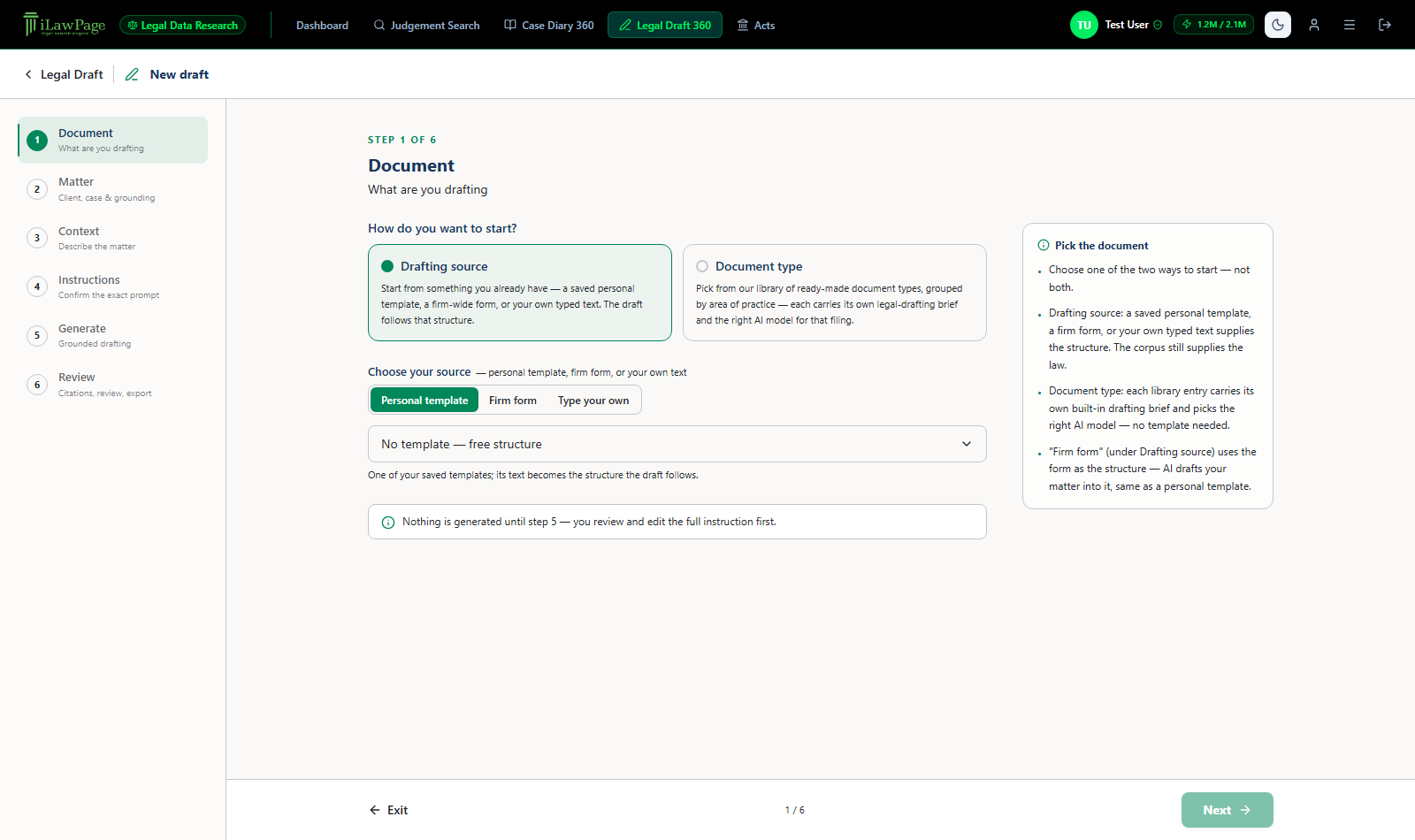
New draft · Step 1 of 6
Step 1 of the drafting wizard: choose a drafting source or document type
Step 1 — choose one of two ways to start: a Drafting source (your saved template, a firm form, or your own text) or a ready-made Document type. The right-hand panel explains the difference as you decide.

Citation verification & export

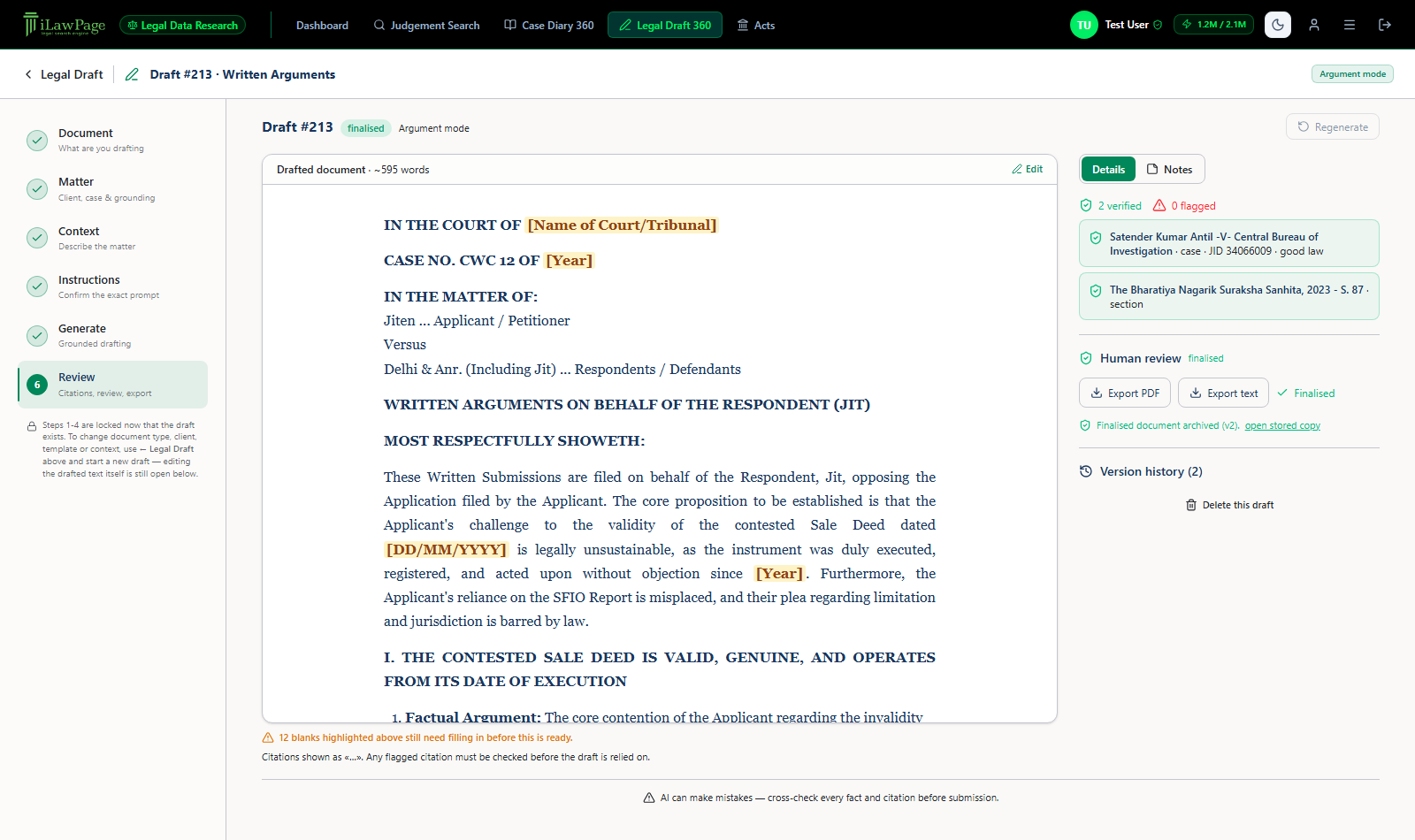
Draft #213 · Written Arguments · Review
Review step of a finalized draft showing 2 verified citations, 0 flagged, export and version history controls
On the Review step, every citation the draft relies on is checked and listed as verified or flagged — here, a citation to a real judgment and a Bharatiya Nagarik Suraksha Sanhita section, both verified. From here you can Export PDF, Export text, mark the draft Finalised, or open Version history.
Before you rely on a draft Any blanks the AI left for you (shown highlighted, like [Name of Court/Tribunal]) need filling in, and any flagged citation must be checked, before the document is ready to file. As the workspace itself notes: AI can make mistakes — cross-check every fact and citation before submission.
04

Acts Search Engine

A full-text library of Bare Acts and Statutes — Bharatiya Nyaya Sanhita, the Family Courts Act, and more — with chapter/section navigation and five ways to search.
The Bharatiya Nyaya Sanhita, 2023 · Section 101
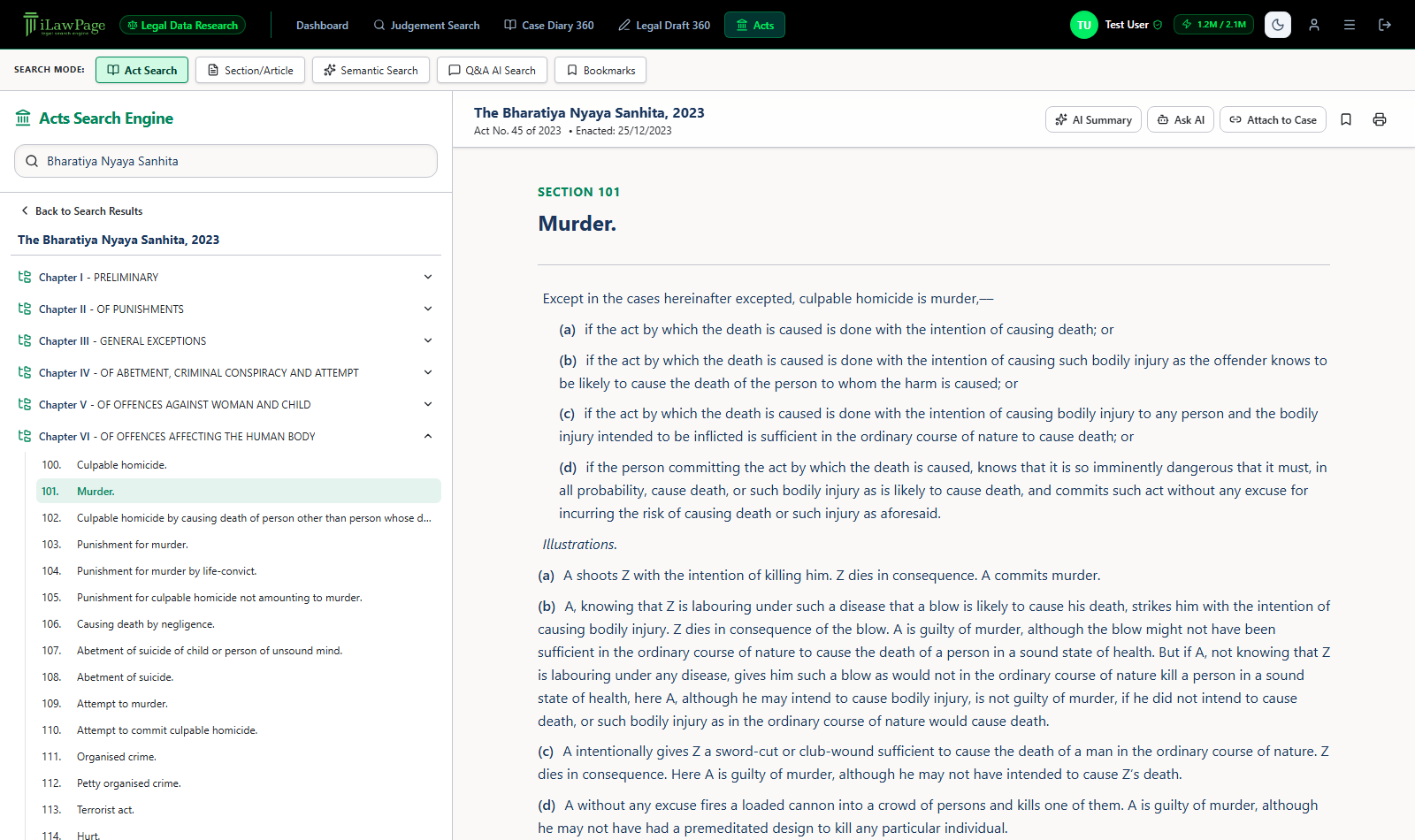
Acts Search Engine reader showing Section 101, Murder, with chapter navigator on the left
The reader is a three-pane layout: your Act list on the far left, that Act's chapters & sections next to it, and the full section text — including illustrations — in the main pane. The header carries AI Summary, Ask AI, Attach to Case, Bookmark, and Print.

Search modes

Act SearchMode

Find an Act by name, then browse it chapter by chapter.

"Bharatiya Nyaya Sanhita"
Section / ArticleMode

Jump straight to a section across every Act, by number or heading.

"Section 138"
Semantic SearchAI

Meaning-based search across every Act's sections and schedules, ranked by match %.

"cruelty against wife"
Q&A AI SearchAI

Ask a plain-English question; get a cited answer drawn from the Acts library, with a Rephrase-with-AI option.

"Punishment for murder under BNS?"
BookmarksSaved

Every section or schedule item you've bookmarked, in one list.
—
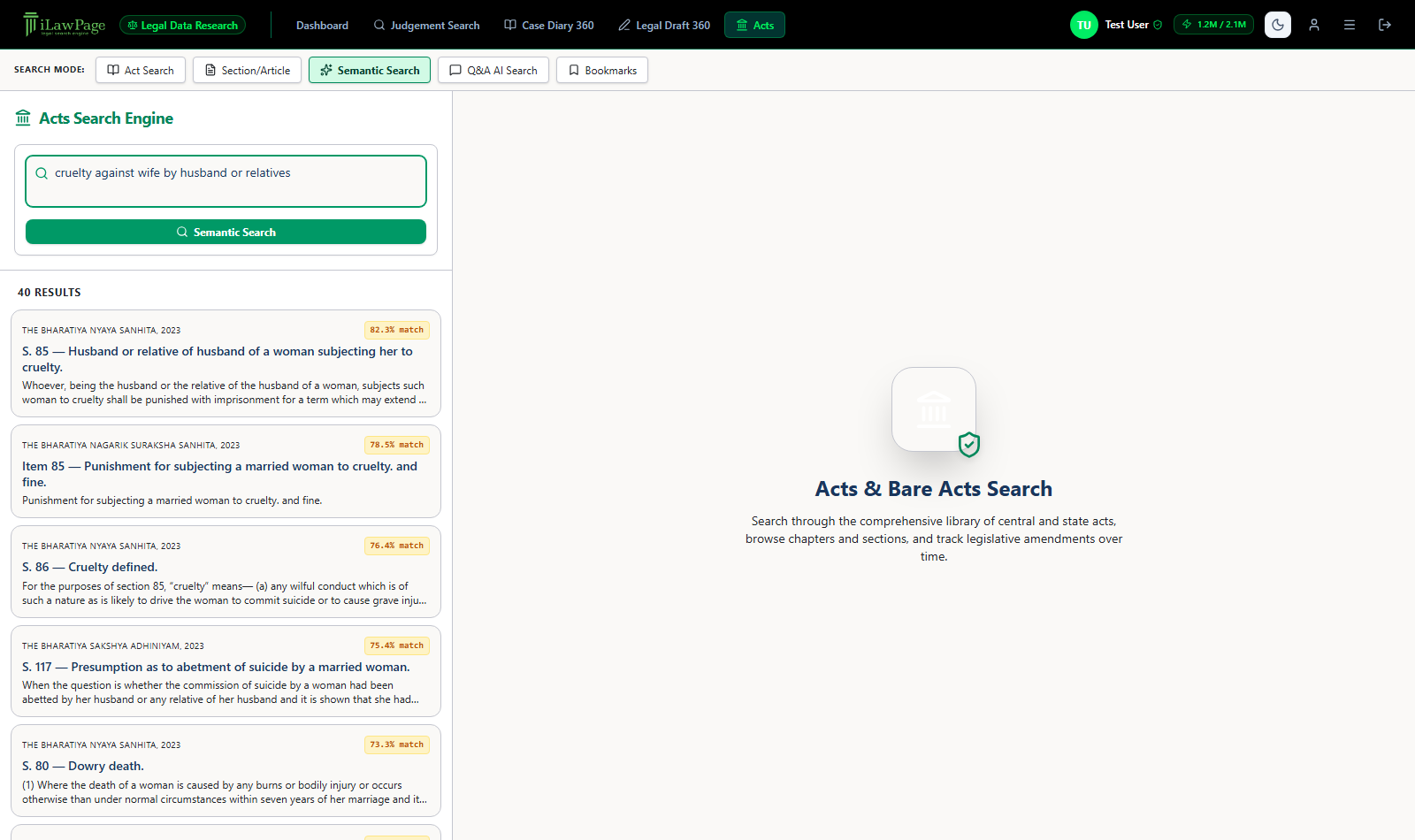
Semantic Search
Semantic search results ranked by match percentage across multiple Acts
Semantic Search ranks results by match % across every Act — here, provisions on cruelty against a wife pulled from three different statutes. Results paginate 20 at a time via Load More.
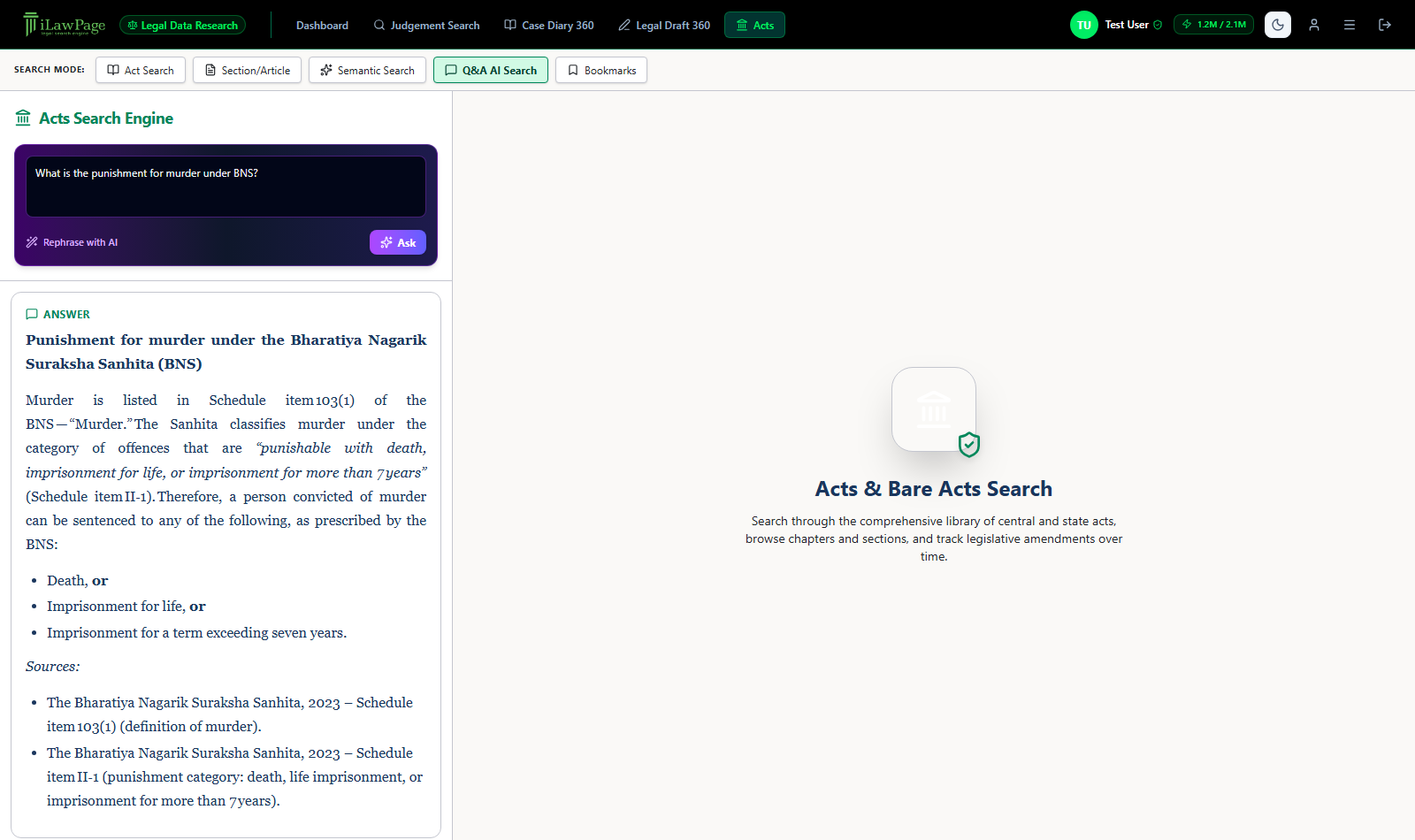
Q&A AI Search
Q&A AI Search answer about punishment for murder with cited sources
A Q&A AI Search answer, with the specific sections it drew from listed as Sources underneath.

Attach to Case

From any open Act or section, Attach to Case opens a popup: search your cases on the left and click Attach, or see what's Already Attached on the right. Once attached, it appears in that case's Act/Section tab in Case Diary 360.
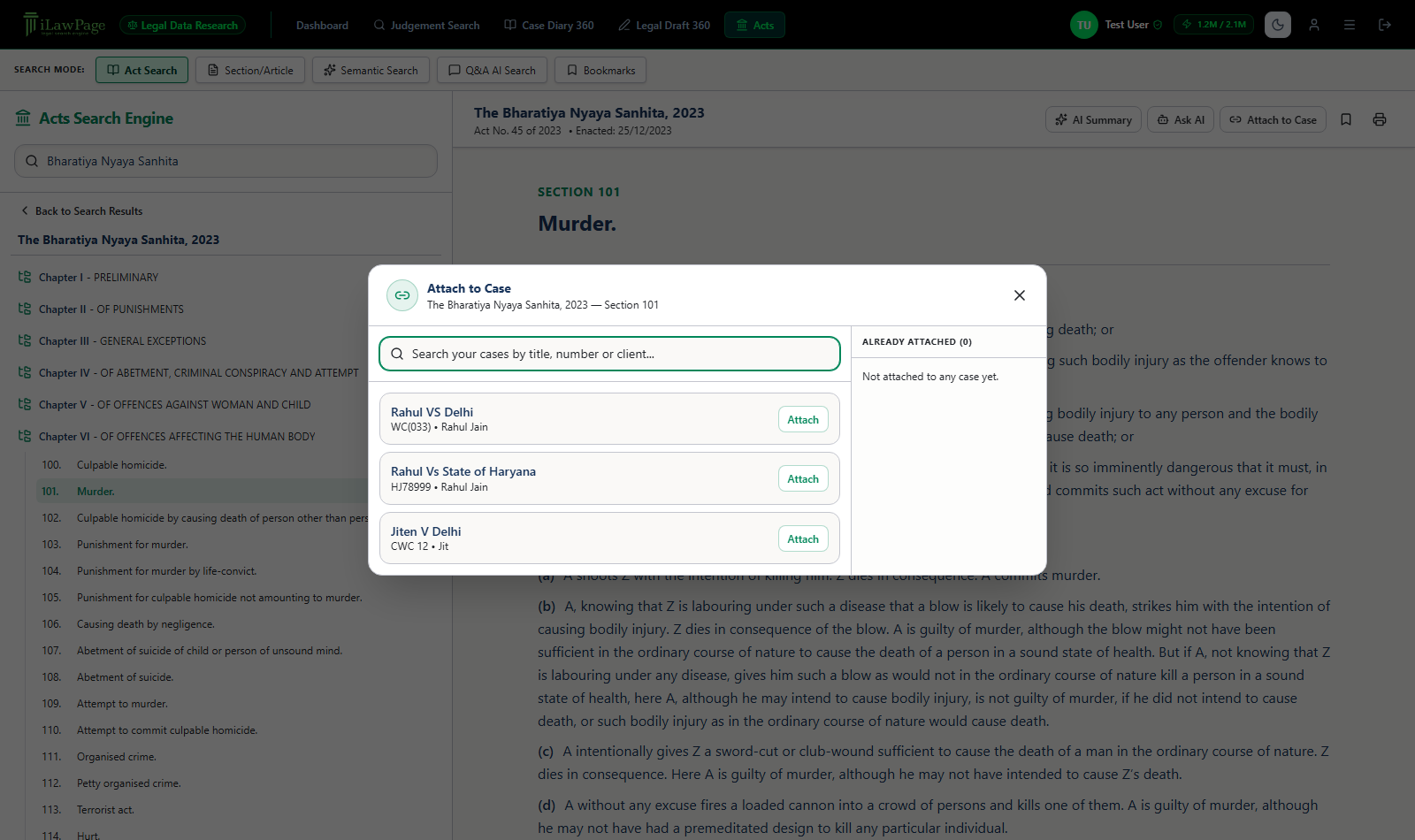
Attach to Case · Section 101
Attach to Case modal with case search on the left and Already Attached list on the right
Attaching Section 101 (Murder) of the Bharatiya Nyaya Sanhita to a case, directly from the reader.
Printing a section The Print icon in the header prints whatever's currently on screen — the Act's introduction, a single section, or a schedule's items — at full page width, and long sections correctly flow across multiple printed pages.